Role Management & Permissions
Learn how to manage user permissions and roles in GrowthLoop.
In this article, you'll learn what types of custom roles can be created in GrowthLoop for permission management. You are able to design specific roles for your organization with granular permissions on datasets, audiences, and other objects within GrowthLoop.
By default, GrowthLoop has three defined roles within an organization:
| Action | User | Admin | Owner | Action Definition |
|---|---|---|---|---|
| Create Audiences | ✅ | ✅ | ✅ | Creates audience |
| Edit Audiences | ✅ | ✅ | ✅ | Edits audiences* |
| Delete Audiences | ✅ | ✅ | ✅ | Deletes audiences* |
| View Audiences | ✅ | ✅ | ✅ | Views audience* |
| List Audiences | ✅ | ✅ | ✅ | Views list of all audiences* |
| Create Templates | ✅ | ✅ | ✅ | Creates templates |
| Edit Templates | ✅ | ✅ | ✅ | Edits templates |
| Delete Templates | ✅ | ✅ | ✅ | Deletes templates |
| Create Exports | ✅ | ✅ | ✅ | Exports audiences* |
| Update Exports | ✅ | ✅ | ✅ | Updates Exports* |
| CSV Exports | ❌ | ✅ | ✅ | Exports audiences to CSV (limited to < 300k records) |
| Create Destination | ✅ | ✅ | ✅ | Creates Destinations |
| Delete Destination | ✅ | ✅ | ✅ | Deletes Destinations |
| Create Studio | ✅ | ✅ | ✅ | Creates audiences in studio |
| Create Journey | ✅ | ✅ | ✅ | Creates journeys |
| Update Journeys | ✅ | ✅ | ✅ | Updates journeys |
| Delete Journeys | ✅ | ✅ | ✅ | Deletes journeys |
| Create Syncs | ✅ | ✅ | ✅ | Creates syncs |
| Update Syncs | ✅ | ✅ | ✅ | Updates syncs |
| View Activity | ❌ | ✅ | ✅ | Views activity across audiences and syncs in central dashboard |
| Create Datasets | ❌ | ✅ | ✅ | Creates Datasets |
| List Datasets | ❌ | ✅ | ✅ | Views a list of all Datasets |
| View Dataset | ❌ | ✅ | ✅ | Views details of a specific dataset |
| Update Dataset | ❌ | ✅ | ✅ | Updates Datasets |
| Create Dataset Groups | ❌ | ✅ | ✅ | Creates Dataset Groups |
| List Dataset Groups | ❌ | ✅ | ✅ | Views a list of all Dataset Groups |
| View Dataset Group | ❌ | ✅ | ✅ | Views a specific Dataset Group |
| Update Dataset Groups | ❌ | ✅ | ✅ | Updates Dataset Groups |
| PII Management | ❌ | ✅ | ✅ | Uses fields labeled as PII in exports for personalization of marketing messages |
| List Teams | ❌ | ✅ | ✅ | Views a list of all teams in organization |
| Edit Teams | ❌ | ✅ | ✅ | Adds or removes users from teams |
| List Users | ❌ | ✅ | ✅ | Views a list of all users in organization |
| Review Audiences | ❌ | ✅ | ✅ | Reviews and approves audiences for export |
| Refresh Source Connection | ❌ | ✅ | ✅ | Refreshes Source Connection |
| Create Sources | ❌ | ✅ | ✅ | Adds source ingests to Data Cloud |
| List Sources | ❌ | ✅ | ✅ | Views list of all source ingests |
| Create Invites | ❌ | ❌ | ✅ | Invites users to join organization |
| List Invites | ❌ | ❌ | ✅ | Sees list of all invites to organization |
| Create Storage | ❌ | ❌ | ✅ | Sets external storage configuration for exports |
| Update Notifications | ❌ | ❌ | ✅ | Sets who in the organization receives notifications |
| Update Share Settings | ❌ | ❌ | ✅ | Sets default audience share settings for organization |
| Create Source Connection | ❌ | ❌ | ✅ | Creates source connection for organization |
| List Source Connections | ❌ | ❌ | ✅ | Views list of all source connections |
| Update Source Connections | ❌ | ❌ | ✅ | Assigns Source Connections to specific teams and modifies logging settings |
| User Activity Audit Logs | ❌ | ✅ | ✅ | Visibility of actions taken by any user |
*Audiences that are shared with them as editor
📘
Custom roles are available on GrowthLoop Enterprise plan
GrowthLoop roles were designed to be completely customizable for enterprise teams. Many of our customers need high specific roles that fit their organization with granular permissioning. You are able to design an unlimited number of custom roles for users within your GrowthLoop Organization. These roles can then be assign to users to provide them with specific permissions.
To design a custom role simply select the permissions from GrowthLoops available list and give your role a name.
Our team will configure the Custom Role for your organization in the GrowthLoop platform, and you will be able to assign your users with that specific role.
To update role assignments for users in your organization, simply follow these steps:
- Navigate to
Organizationpage - Click
Userstab - Select role next to user name, and the new role will automatically save for that user.
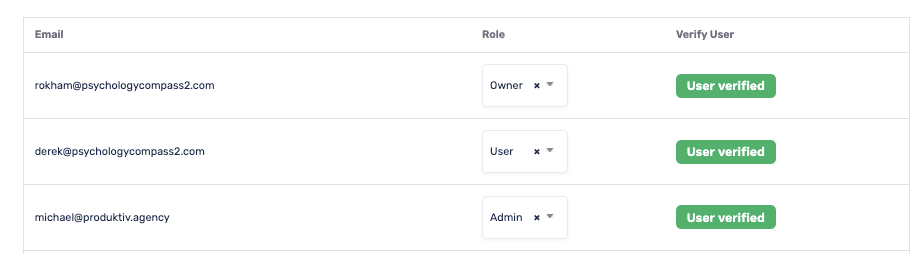
Update user roles on Organization Management Panel
If you experience any issues or have any questions, please reach out to us at [email protected], and we’ll be in touch shortly!
Updated 5 months ago