Criteo: Retail Media
Learn how to connect and send audiences to Criteo: Retail Media
In this article, we'll guide you through connecting Criteo: Retail Media to GrowthLoop and exporting your audiences to the destination.
Criteo: Retail Media is an advertising solution designed to help retailers and brands promote their products directly within retail environments, both online and offline
- Make sure you have a Criteo: Retail Media account. If you don't, fill out this form to get in touch with a rep!
-
Log into GrowthLoop and click the Destinations tab on the left sidebar.
-
Then click New Destinations on the upper right side.
-
Next, search for Criteo: Retail Media in the destination modal and click Add Criteo: Retail Media.
-
After that, follow the prompts on the Criteo consent screen to log in and delegate permissions for the appropriate advertisers. Only users in the Admin role can grant access.
-
Finally, enter the required information in the modal and click Create.
Destination: Enter the name you want to give the destination.Sync Frequency: Select a default export frequency to the destination.Select Ad Account: Select the ad account from the drop-down menu where you want to export your audiences.Retailer ID: Enter the unique identifier associated with your Retail Media account. You can find the ID by logging into the platform and navigating to Account Settings > Retailers.
-
Navigate to your list of audiences by clicking the Audiences tab on the left sidebar.
-
Choose an existing audience or create a new one. Need help creating? Click here to learn how!
-
Once created, click the Export button on the upper right side.
-
Search for Criteo: Retail Media in the export modal and then click Add Criteo: Retail Media.
-
Map one of the following user identifiers under Configure Match Field Settings:
Email Address,User Identifier,LiveRamp Identity Link, orRetail Media Customer ID. After mapping, click Next. -
Configure your export settings: 1. Export Name: Automatically populated with your audience name for easy identification in the destination. 2. Campaign Type: Choose between a
One Timeexport orOngoingbasis. 3. Audience Segment Status: Choose betweenNeworExisting.New: Selected by default, this option creates a new audience segment of the type contact list, using the specified audience name, and adds users to that segment.Existing: When this option is selected, you must enter the Audience Segment ID to add users to an existing audience segment. To find the ID, navigate to Shared Library > Audiences and Segments > Contact List > Sharing Details. The ID can be found in the URL between contact-lists/ and /share. For example:
https://retailmedia.criteo.com/accounts/12345/demand/audiences/segments/contact-lists/45678/share (the ID is 45678). 4. Export Schedule: Set theFrequency,Start Date,End Date, and specificDays of the Week.
-
Finally, click Export to send the audience to Criteo: Retail Media!
👍
You have successfully exported the audience!
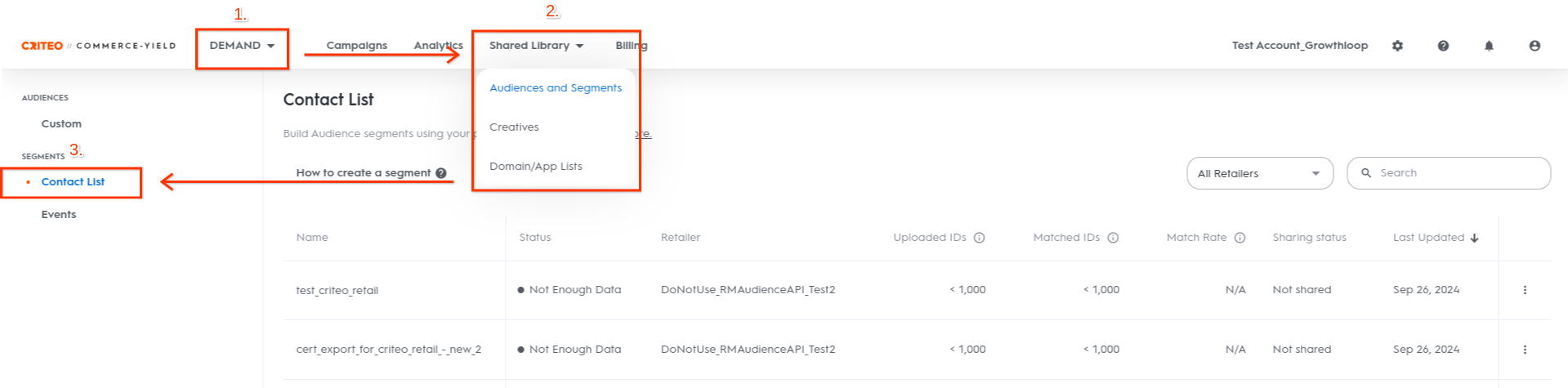
To view your audience, log in to Criteo: Retail Media. Then, click (1) Demand on the top navigation bar, open the (2) Shared Library drop-down, and selectAudiences and Segments. Next, click (3) Contact List under Segments in the left-hand navigation bar.
📘
Experiencing any issues when connecting and/or exporting to Criteo: Retail Media? Reach out to us at [email protected] and we’ll be in touch shortly to help resolve the matter!
Updated 5 months ago