Create Audience Recipes and templates | GrowthLoop Docs
Create Audience Recipes and templates
This article outlines the steps necessary to start saving an audience as a template and building an Audience using a Template.
If you would like to save your Audiences as a template for use in the future, click the dropdown next to Export audience and select Save as new template.
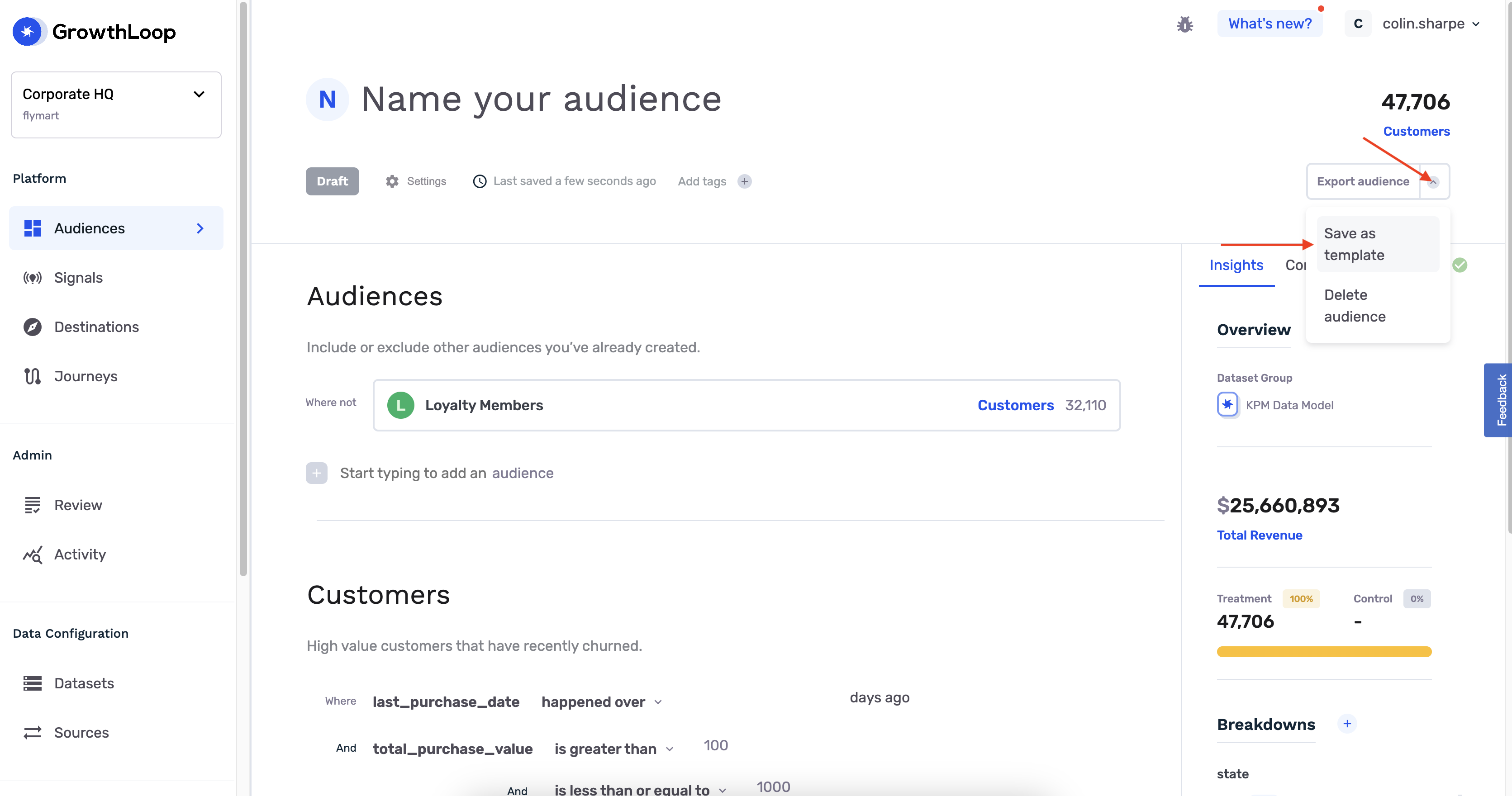
Your saved template will be available the next time you want to build an audience using a template.
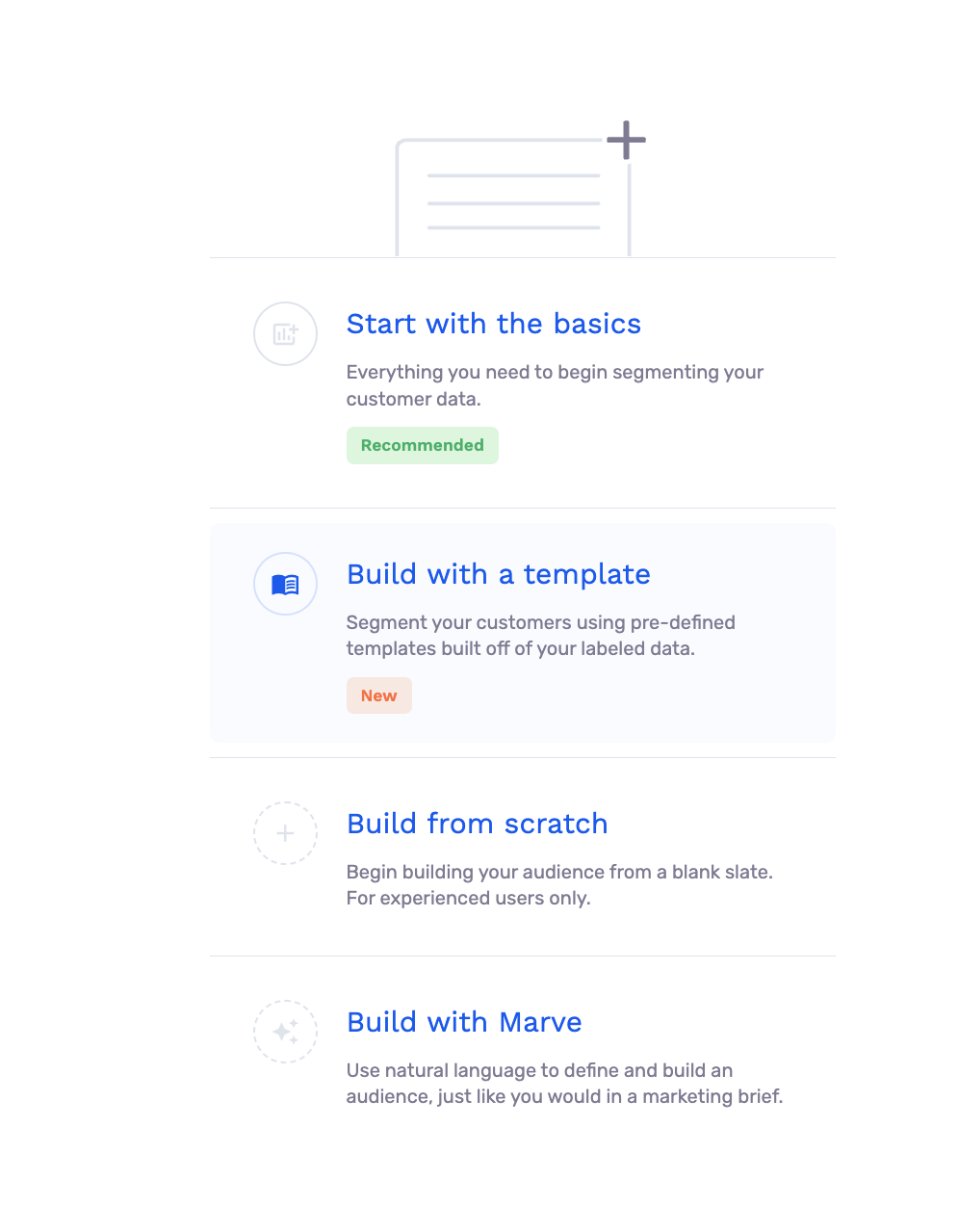
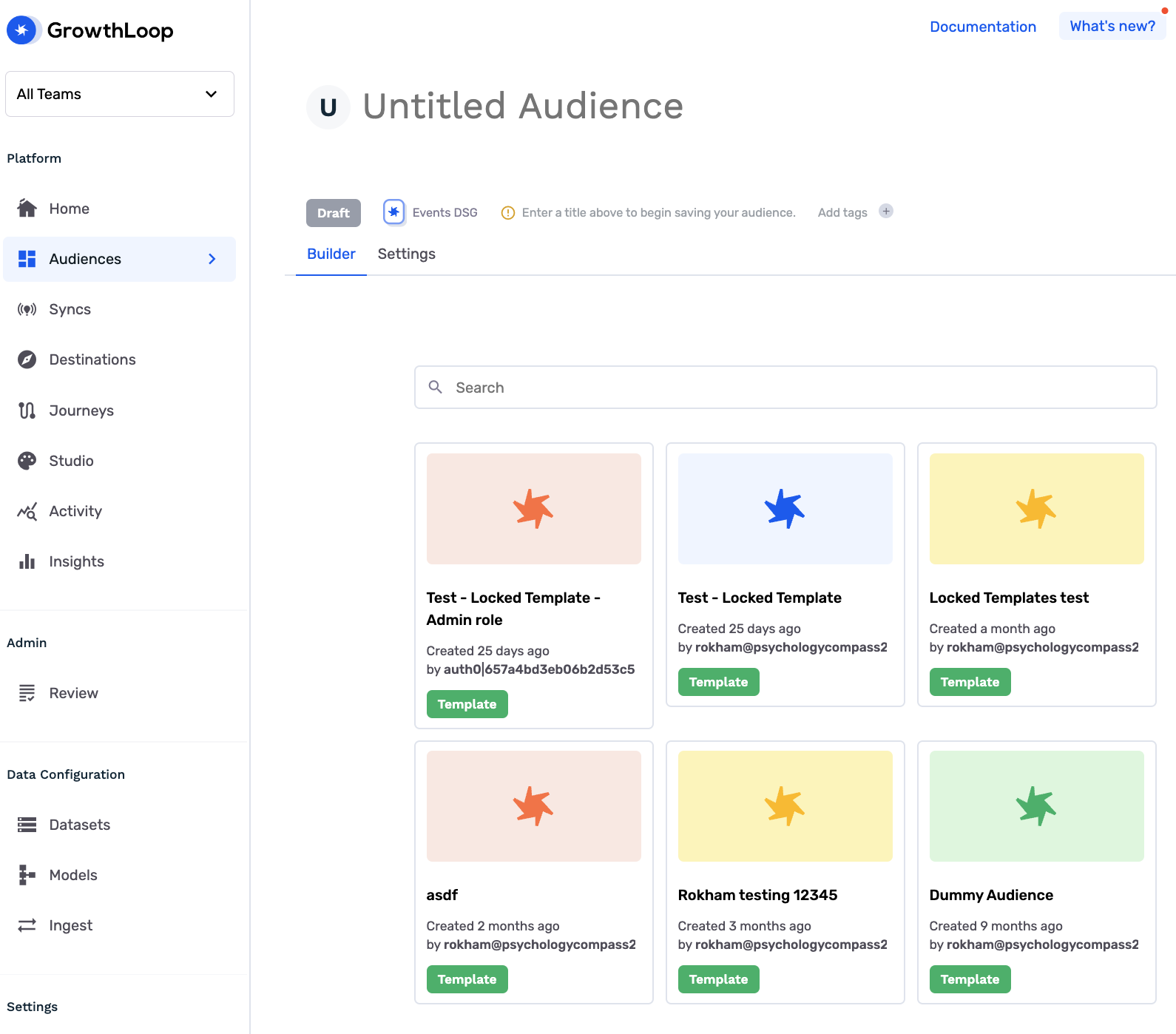
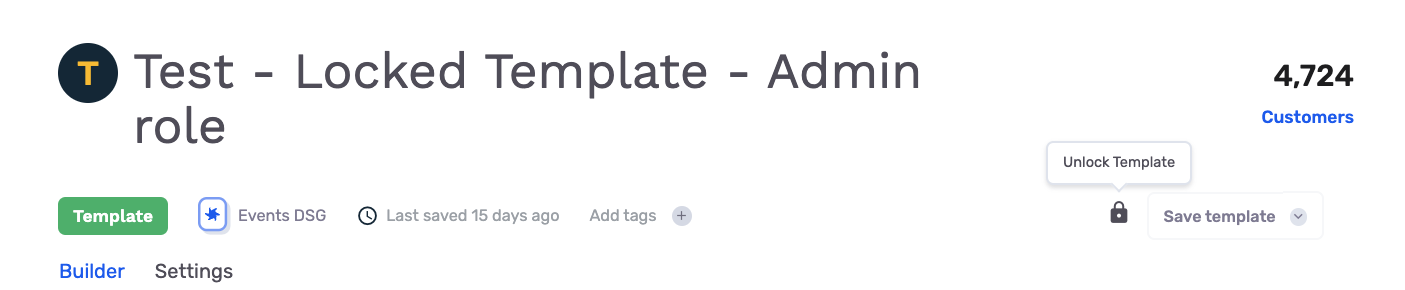
Once you save an audience as a template, you can also choose to lock the template. You can lock / unlock the template by clicking the lock icon on the top-right hand side, next to "Save template" button.
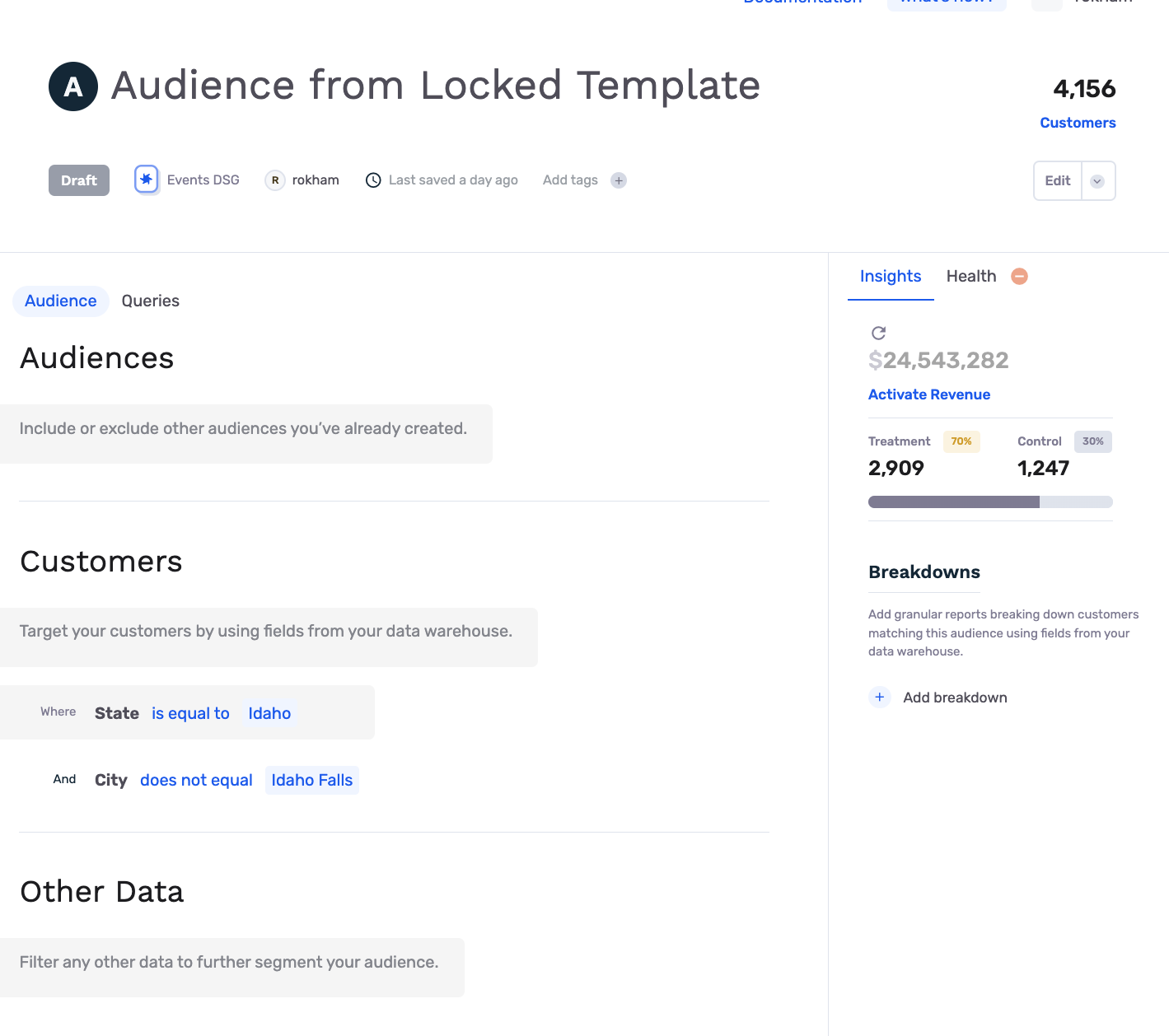
Building an audience from a locked template, will have the audience inherit all the template's filters as non-editable. However, you can add your additional filters to the newly created audience.
In the example below, the audience inherited the "State = Idaho" filter from the template, but has an additional filter where customers should not be in "Idaho Falls" city.
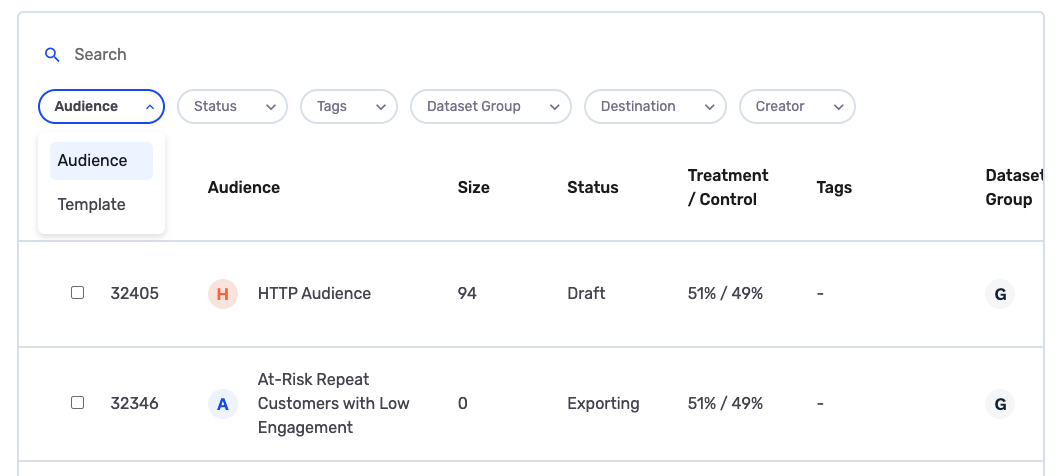
After you save one or more audiences as templates, go to the Audience Hub page. In the top-left filter menu labeled Audience, click the dropdown and choose Template. This will switch the table view so you can see all of your saved templates.
📘
Note
If you experience any issues with recipes and templates, please reach out to us at [email protected], and we’ll be in touch shortly to help resolve the matter!
Updated 9 days ago