How to import popular data sources to GrowthLoop | GrowthLoop Docs
How to import popular data sources to GrowthLoop
Ingest Data Sources
Empower your organization to ingest customer data directly from popular sources (eg, Salesforce) to your Data Cloud and immediately activate them across your marketing channels.
-
Facebook ads
-
Google Ads
-
The TradeDesk
-
Salesforce CRM
-
Dynamics CRM
-
Pardot
-
Salesforce Marketing Cloud
-
Sailthru
-
Braze
-
Iterable
Easy Button empowers organizations to ingest data from popular sources directly into your Data Cloud and immediately activate it across all channels. It sets up a data sync from source to GrowthLoop, instantiates data models to make the raw source data usable, and connects the desired datasets to the GrowthLoop app for immediate use in building and exporting audiences.
Estimated time to set up:<15 minutes
Easy Button supports ingestion and modeling of Salesforce CRM data.
GrowthLoop can support any of the 300+ sources found here: https://www.fivetran.com/connectors
To request a new source, please reach out to [email protected].
EasyButton allows you to start ingesting data with a click of a few buttons. Let's walk through setting up a new organization and then using Easy Button to ingest Salesforce data.
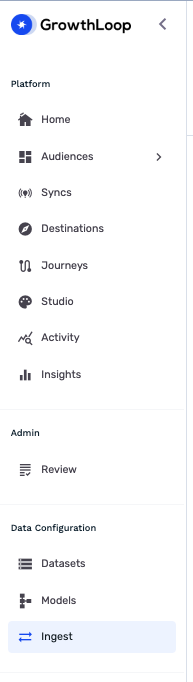
After connecting your data warehouse, use the lefthand menu to select ‘Sources’ from the ‘Data Configuration’ option:
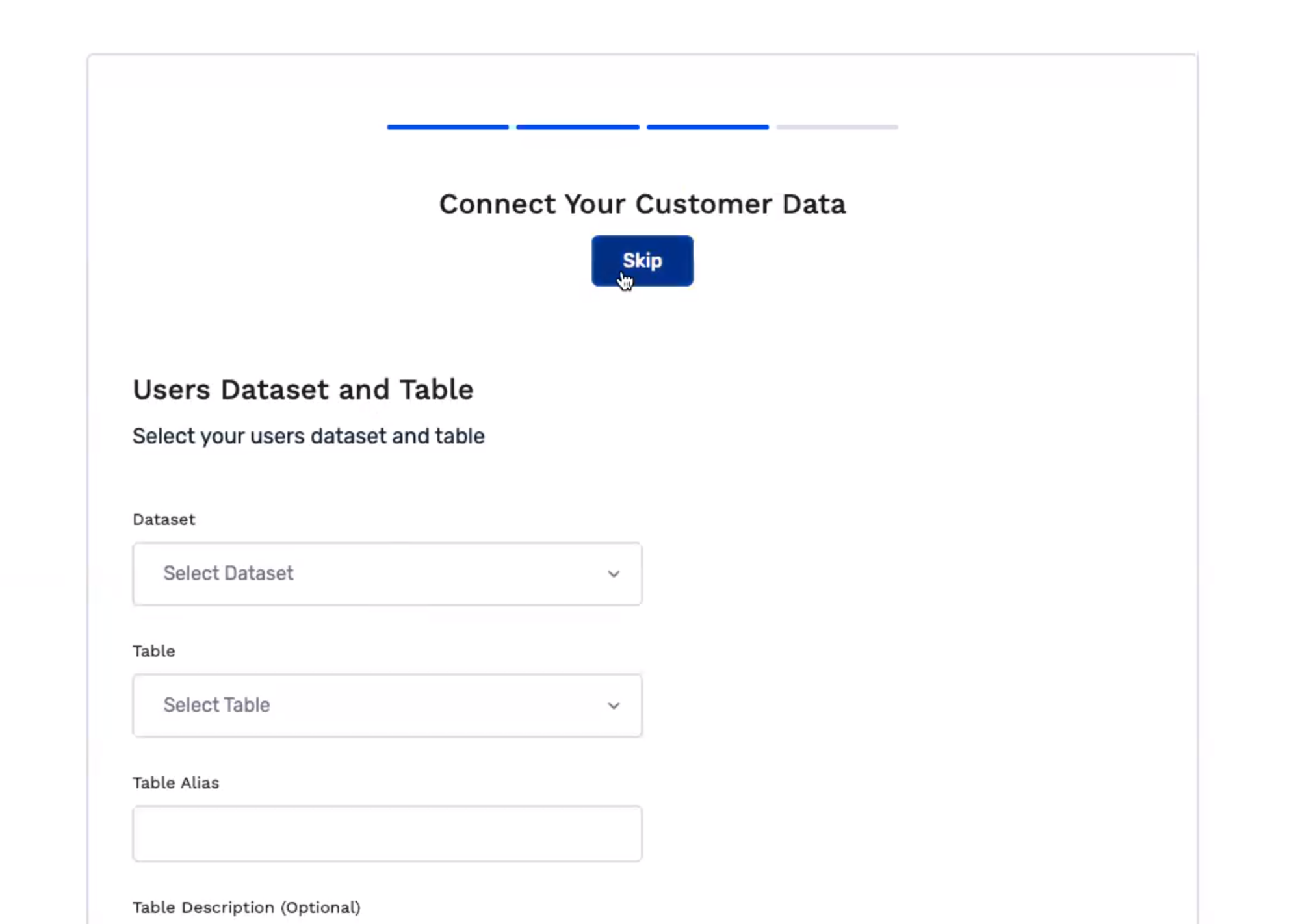
Once you are in the organization after onboarding we are ready to setup our sources.

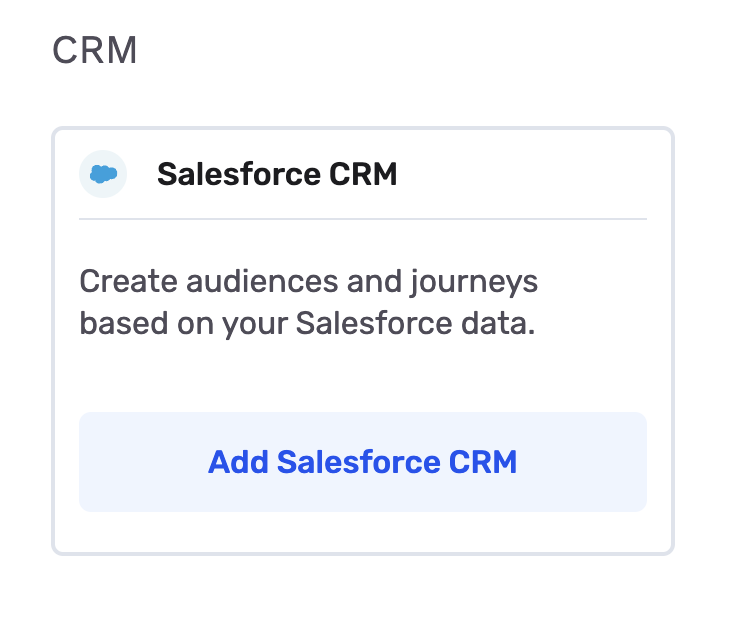
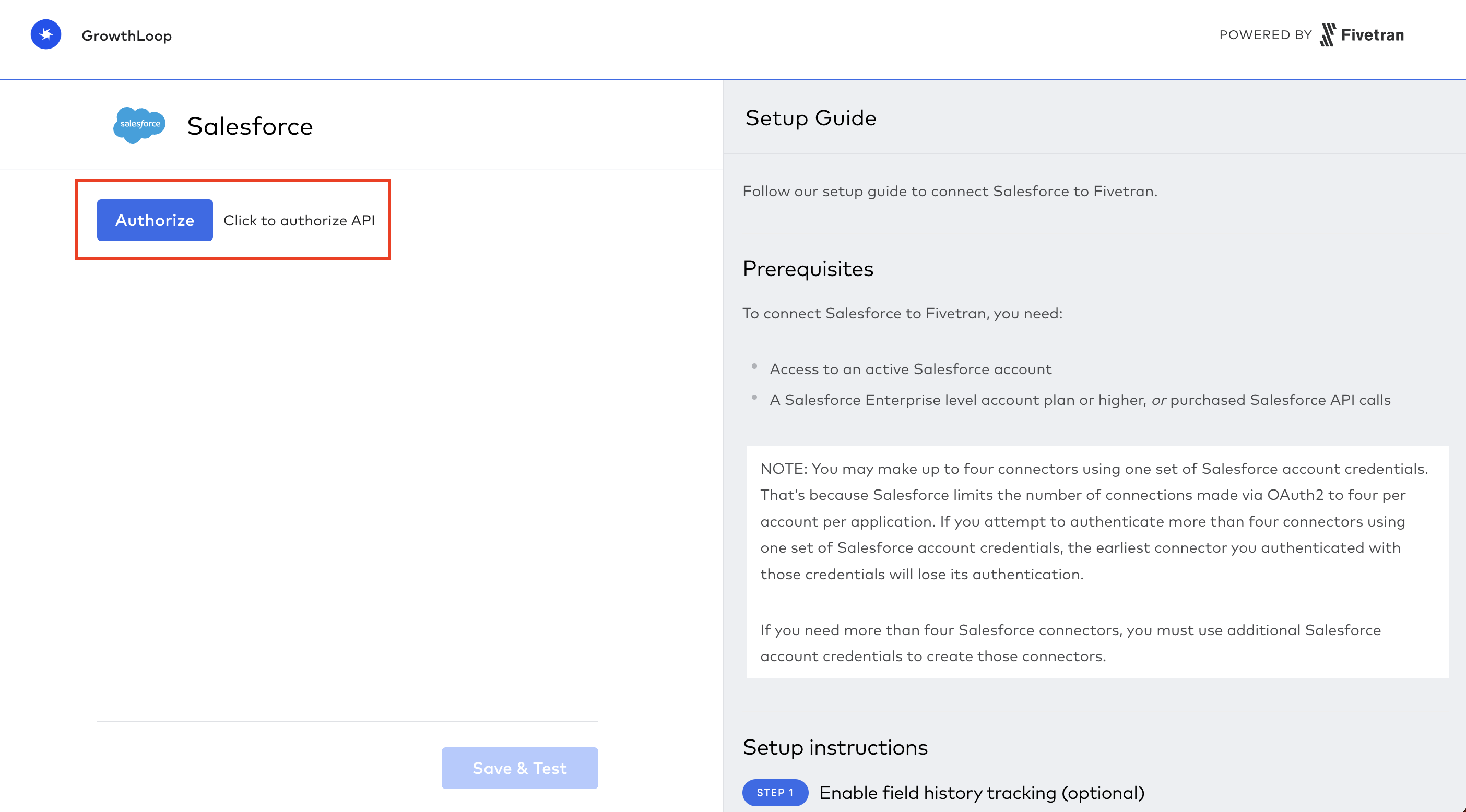
You will be redirected to Fivetran.
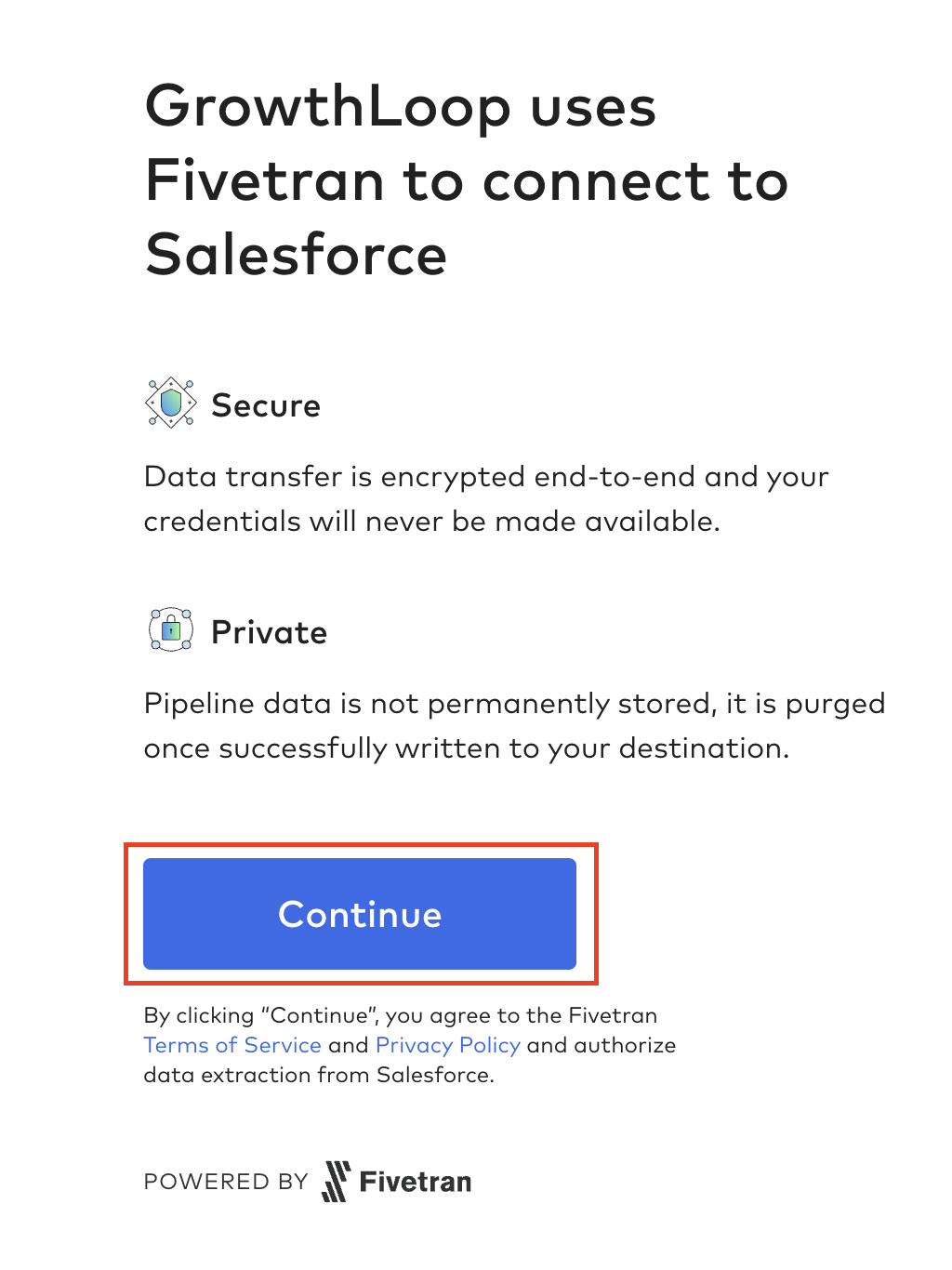
Refer to the Setup Guide provided by Fivetran for more info.
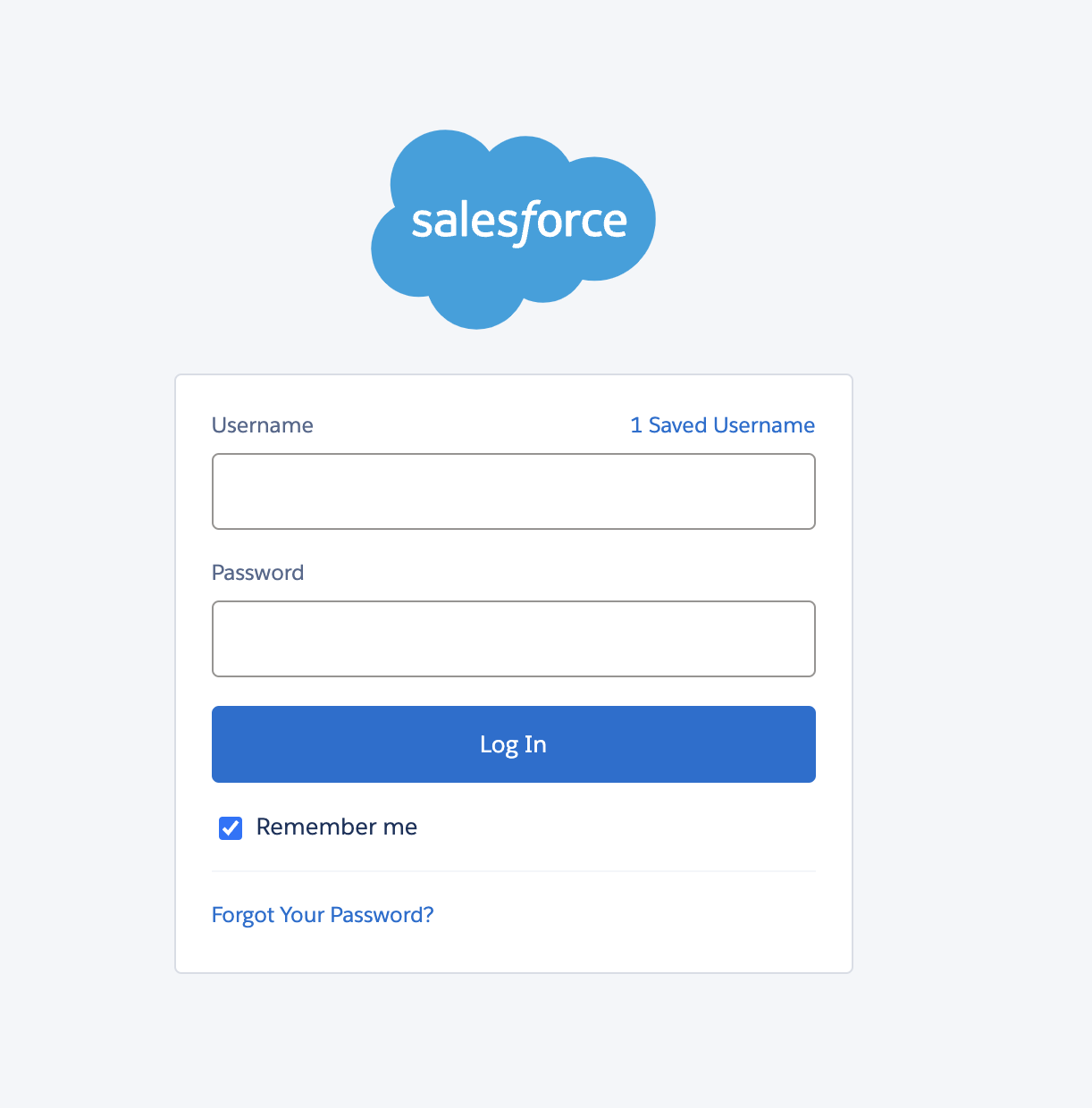
You will be redirected to a Salesforce login modal.
You will be returned to Fivetran.
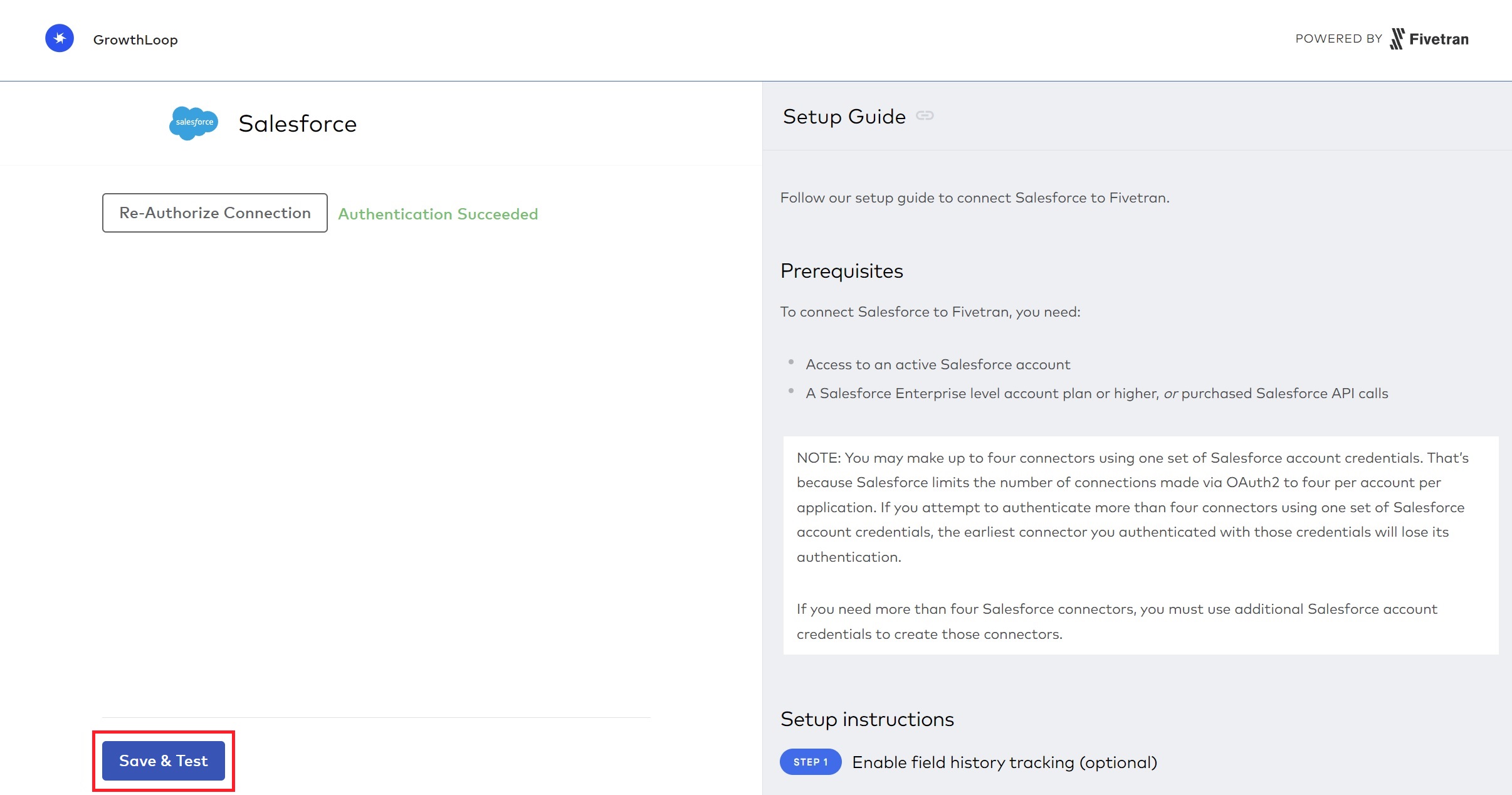
If you do not see “Authentication Succeeded”, then likely there was an error with your credentials. Try again, and if that doesn’t work, submit a support ticket.
You will be returned to GrowthLoop.
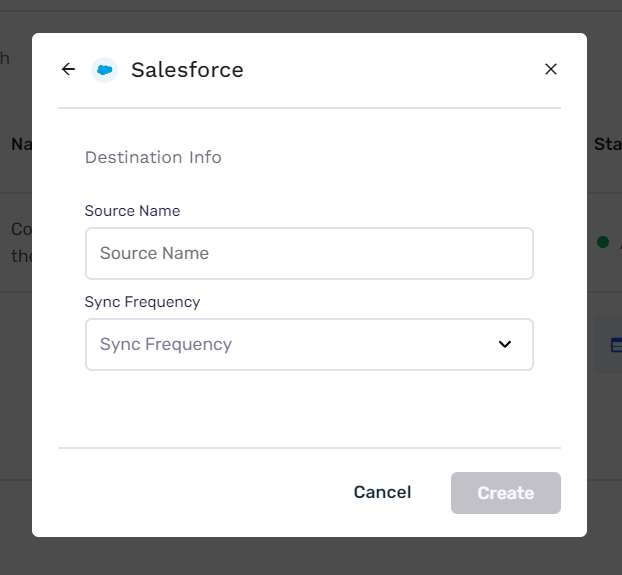
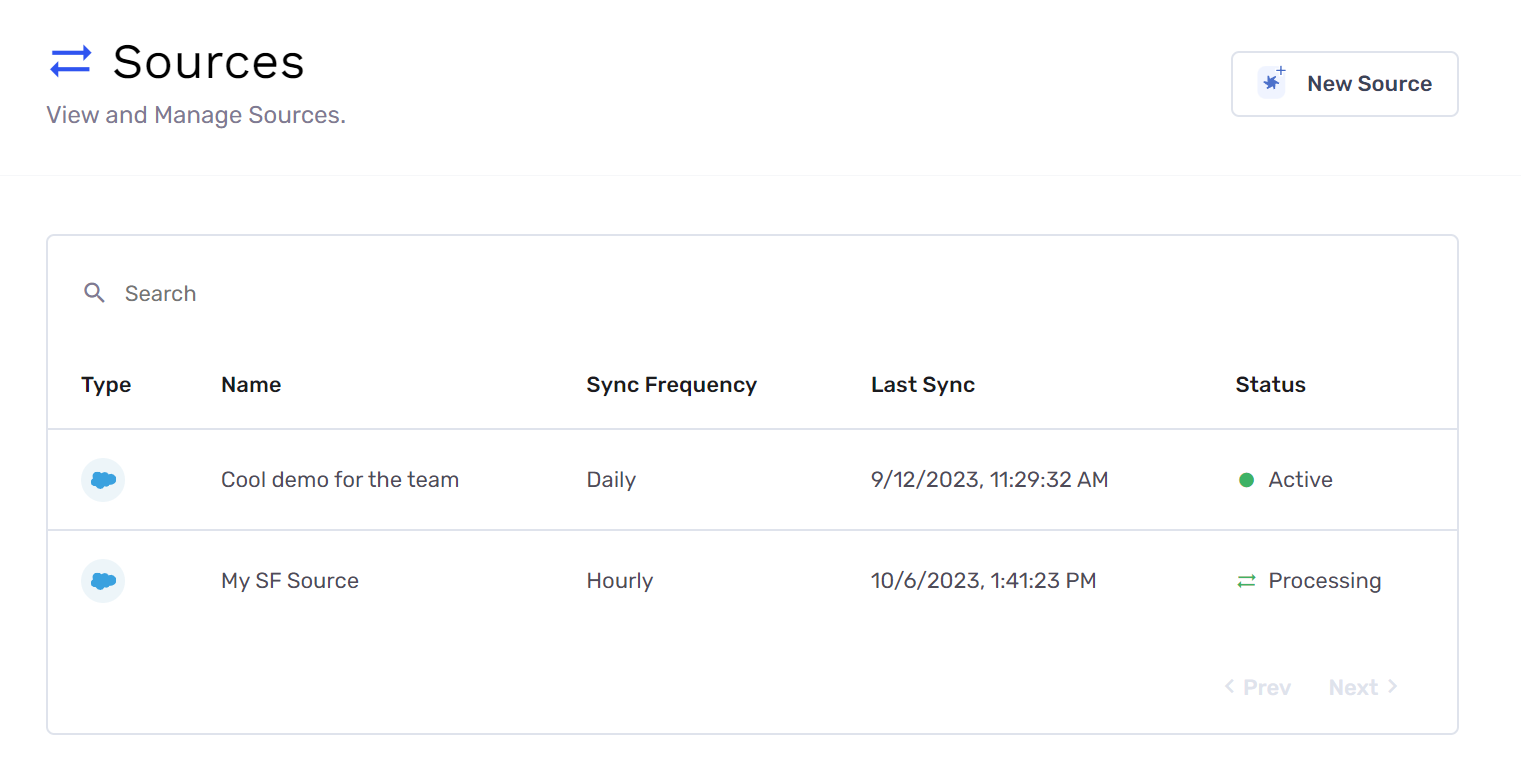
Once you see the status as “Active”, this indicates the raw data has been synced to your data warehouse
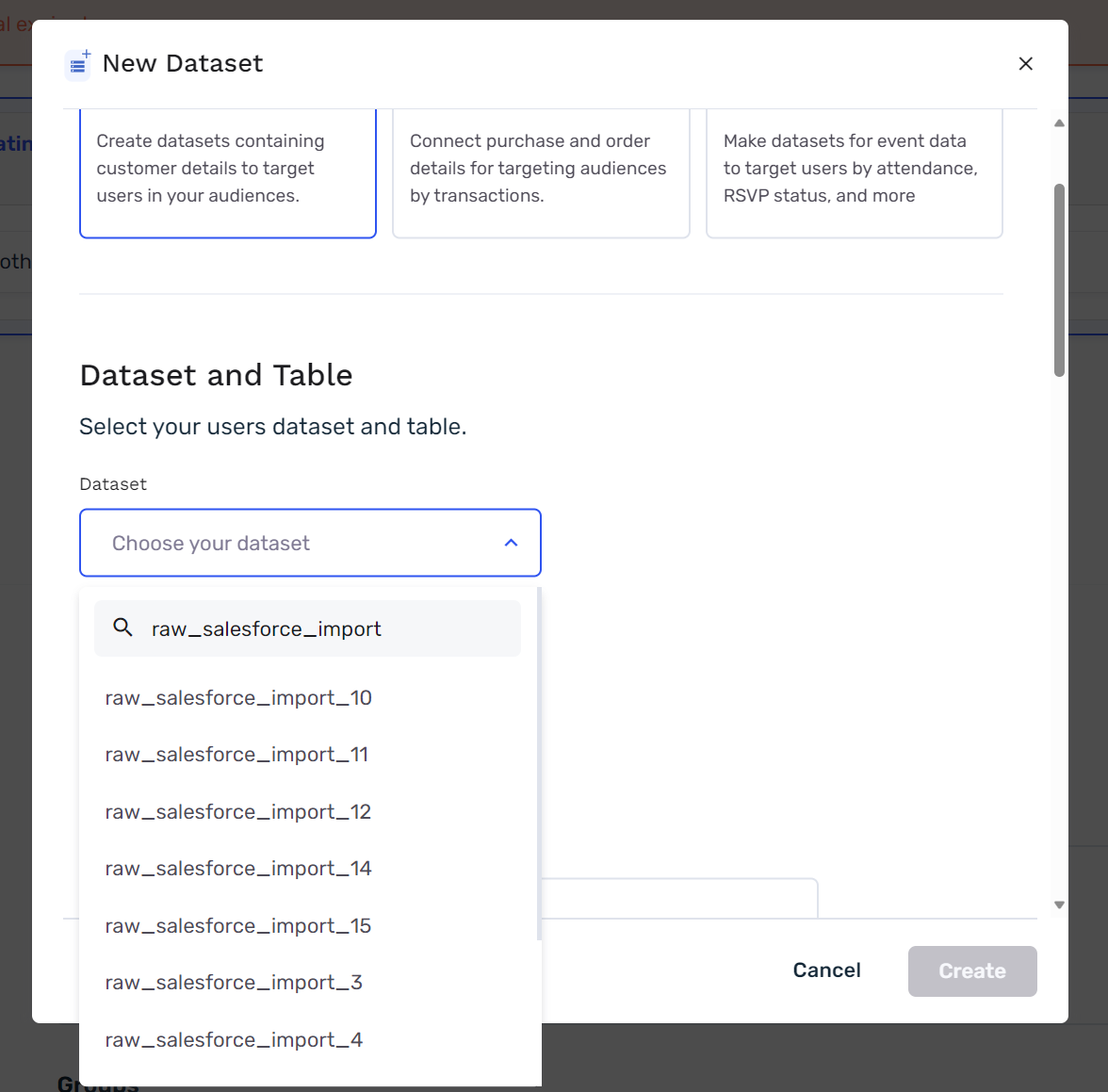
The raw dataset will be called raw_salesforce_import_{x} where x is the number of the source that has been set up. In this case, since it was the latest source set up, it is raw_salesforce_import_6.
For more information or to provide feedback to the team, please reach out to [email protected] We can’t wait to hear from you!
Updated 5 months ago